Presence V3 Documentation
Presence is a major service in SME Connect that managers user, room, and tool data. This includes not only database connections to create, update, or delete information but also SocketIO events that trigger changes and updates for the end-user.
Cosmos Data Values
Presence makes several connections to the Cosmos DB to handle user, room, and tool data. These connections occur primarily through API requests or happen through a socket event. The Presence Cosmos DB uses three main containers to handle data.
- Sessions: Stores the user's session information
- RoomsAndUsers: The main container for handling room, user, userRoom, and invites data.
- EmailOtp: Stores a hashed OTP & salt if a user is logging into SME Connect with just an email
Session Data
A session is what provides the user with credentials for accessing user, room, invite, or userRoom information. The session data is created through the login API method and is based on the provided JWT information sent through other SME Connect endpoints (such as AuthN).
A user must have a valid session in order to interact with SME Connect. A session is valid until it expires. The majority of Presence API calls will check a user's session and use the user's UUID associated with the session when making changes or updates to the Cosmos DB.
When developing, the Cosmos DB will have the following properties:
{
	id: string, // Identifies the type of data stored, value is always "session"
	uuid: string, // Unique identifier of the session
	session: {
		// An object that has the session UUID, the user's UUID, and the times when created.
		uuid: string, // Unique identifier of the session.
		user_uuid: string, // UUID of the user associated with the session
		created_ts: number, // Timestamp of when the session was created
		expires_ts: number, // Timestamp of when the session will expire (0 if session was expired via a `logout`)
		revoked: boolean, // Identifies if session as revoked
	},
	data: {
		//An object containing additional information about the session, such as the authentication source and user details
		auth_source: string, // An object with details about the authentication source
		uid: string, // The user's email address
		name: string, // The name of the user
		uuid: string, // The user's UUID
	}
}
Member (User) Data
A member data entry in the RoomsAndUsers container stores all of the information about a particular user in SME Connect. When developing, a member data in Cosmos will have the following properties:
{
  id: string, // The identifier of a `member` entry
  uuid: string, //  A member/user's unique ID
  data: { // An object that holds the user's information.
    uuid: string, // A member/user's unique ID
    created: number, // Timestamp when the user was created
    modified: number, // Timestamp when the user's data was last modified
    uid: string, // The user's email
    name: string, // The user's name
    type: string, // The user's type, values will include either: "RemoteExpert", "OnSiteUser", "EmbeddedNode", or "Tool"
    device: string, //  The user's device used to access SME Connect. Values will include either "WebUI", "iPad", "EmbeddedNode", "DMM-v1", "Boroscope-v1", "OpticalMicrometer-v1", or "GenericCamera-v1"
    method: string, // The user's login method. Values will include either: "google", "apple", "cac", or "email"
    socketId: string, // The user's socketID for a room
    room: string, // The UUID of the room a user is in, value may be null
    parentUuid: string, // A property that only a `tool` will have as a value. This identifies which Tools Gateway or `EmbeddedNode` the tool is plugged into.
    version: number // Version of the data entry (was used/set for past data migration)
  }
}
Note: When developing, the data object is used primarily by the user model, and is the main data serialized and returned to users from API endpoints.
Explaining member device and type
A member's type will have these values:
- RemoteExpert: Identifies someone who is accessing SME Connect through the WebUI.
- OnSiteUser: Identifies someone who is using the SME Connect application on the iPad.
- EmbeddedNode: Identifies the Tools Gateway. This device allows any USB or serial-enabled tool to connect to an on-site user and remote expert. Note:
Embedded Nodeis the old name that referred to the Tools Gateway and is still used in the backend code as its identifier. - Tool: A USB or serial-enabled device that connects to the Tools Gateway. A
toolwill always join whichever room the Tools Gateway is in.
A member's device will be one of the following:
- WebUI: A web application. They will be of type
RemoteExpert - iPad: The iPad application. They will be of type
OnSiteUser - EmbeddedNode: The Tools Gateway, will have the same type.
- DMM-v1: A digital multimeter which sends data over to remote experts and on-site users. Member will have type
Tool - Boroscope-v1: A digital borescope, which will send video data to remote experts and on-site users. Member will have type
Tool - OpticalMicrometer-v: An optical micrometer, which will send video data to remote experts and on-site users. Member will have type
Tool - GenericCamera-v1: A generic USB camera, which will send video data to remote experts and on-site users. Member will have type
Tool
Room Data
A room data entry in the RoomsAndUsers Cosmos container stores all of the information about a particular room in SME Connect. The main parts of a room entry that a developer will interact with include:
{
  id: string, // The identifier of a `room` entry, value is `room`
  uuid: string, // A room's unique ID
  data: { // An object that holds the room's information.
    uuid: string, // A room's unique ID
    created: number, // The timestamp of when the room was created
    modified: number, // The timestamp of when the room was last modified (i.e. when someone joined/left)
    shortname: string, // The unique four-word phrase of a room, such as "almighty-goldfish-rebellion-miracle"
    name: string, //  The room name
    createdBy: string // The UUID of the user that created the room
  }
}
UserRoom Data
A userRoom data entry in the RoomsAndUsers Cosmos container stores all of the information about a user's credentials for a room. The status of a userRoom will dictate whether a user is Approved, pending, or kicked from a particular room.
When a user requests to join a room, a userRoom will be created that will either have a state of Approved or pending.
All users, with exception of a user of type tool, may have a userRoom associated to them. The reason a tool may not have a userRoom is because a tool is always automatically approved for a room.
The main parts of an invite entry that a developer will interact with include:
{
  id: string, // The identification of a `userRoom` entry
  uuid: string, // A userRoom's unique ID. This property is not used for querying a `userRoom` by the backend, but differentiates it from other `userRoom` entries.
  data: { // An object that holds the userRoom's information.
    uuid: string, //  A userRoom's unique ID
    userId: string, // The UUID of the user
    roomId: string, // The UUID of the room associated with the credentials
    state: string, // The state of the credentials, either `Approved`, `pending`, or `kicked`
    lastJoined: number // The timestamp fo when the user last joined the room
  }
}
Explaining the UserRoom states
A userRoom will have three possible states: 'Approved', 'pending', or 'kicked'. These states will affect the user's experience.
Approved: This state means a user has been approved to join a room. A userRoom will have this state when a user has created the room or when another user clicks "approve" when they request to join.
pending: This state means a user is waiting for approval to join a room. This user will be in the waiting room and is waiting for someone to click "approve" when they requested to join.
kicked: If a user is kicked from the room, their userRoom state will be changed to kicked. The user will not see the room on their dashboard anymore and will need to request to be approved once more.
Note: If a user is pending approval for a room and leaves the waiting room while waiting to be approved, the userRoom will be deleted. The user will need to request to join the room again and have a new userRoom created.
Invite Data
An invite data data entry in the RoomsAndUsers Cosmos container stores all of the information about a particular invitation in SME Connect. A user who is currently in a room may send an invitation to another user using their email address.
This invitation will give that user automatic approval when requesting to join the room.
The main parts of an invite entry that a developer will interact with include:
  id: string, // The identifier of an `invite` entry
  uuid: string, // An invite's unique ID. This property is not used for querying an invite by the backend, but differentiates it from other invites.
  data: { // An object that holds the invite's information.
    uuid: string, // An invite's unique ID
    created: number, // Timestamp of when the invitation was created
    modified: number, // Timestamp of when the invitation was modified
    uid: string, // The email address of the user invited. This is the main way the invite will be associated with an account.
    room: string, // The room UUID for the invitation
    shortname: string, // The unique four-word phrase of a room, such as "almighty-goldfish-rebellion-miracle"
    name: string, // The name of the room
    invitedDate: number, // Timestamp of when the user was invited to join the room
    invitedBy: { // An object with the details about who invited the user to join the room
      uuid: string, // UUID of the user that sent the invitation
      name: string, // The name of the user that sent the invitation
      uid: string // The email address of the user that sent the invitation
    }
  }
EmailOtp Data
TheEmailOtp container is where the items associated with a user's OTP are stored. This special container is used solely for storing a requested OTP for a user, which will then be used for authenticating the user to join SME Connect.
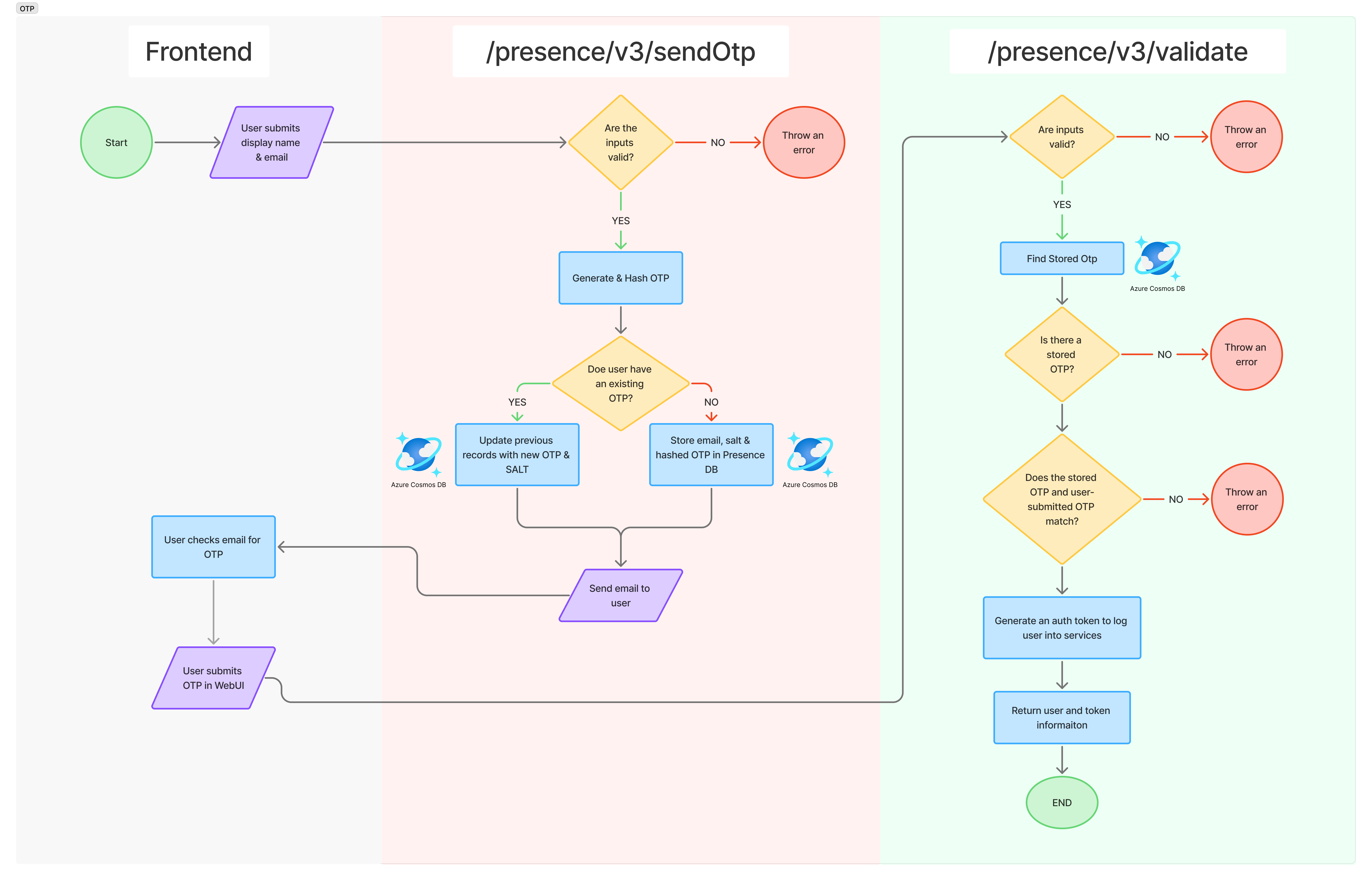
In the flow of SME Connect, a user requests an OTP if they want to sign into SME Connect with just their email address. The user will receive an 8-digit OTP to their email address. This 8-digit OTP is stored in the EmailOtp container.
The OTP is only valid for 15 minutes.
The EmailOtp container will store one type of item: otp
The otp data has the following properties:
 {
  id: string, // The identifier of an `otp` entry
  emailAddress: string, // The email address of the user requesting an OTP
  data: { // An object that holds the otp information.
    otp: string, // A hashed version of the OTP sent to the user
    salt: string, // The salt used for un-hashing the OTP
    time: number // The time the OTP was stored
  }
 }
This documentation is ordered in two main ways: API Docs and Models & Socket Events.
API Docs | Link to Docs
API Docs contains information about the main endpoints and services in presence. This includes:
- Logging into Presence
- Registering a user
- Getting user information
- Creating a room
- Getting room(s) information
- Approving a user to a room
- Inviting a user to a room
- Requesting an OTP
- Validating an OTP
- Getting a JWT for
assets - Negotiating a WebSocket connection
- Getting Translation credentials
The sections below provide a broad overview of some of the more complex processes involved with Presence.
Outlining Complex API Processes
Logging into Presence | Link
The login process occurs once a user has a valid JWT token provided by the auth service. When a user logs into SME Connect, the presence login endpoint will create a valid service session and return a session cookie to the user. This cookie is valid for a 2 hour window. The session cookie stores the user's credentials, which will provide authorization for interacting with the different presence services, such as joining and creating rooms.
When a user logs into presence for the first time, the user will have a new User record created. This record will originally contain just their name, uid (email), and uuid (unique ID).
In the application's larger scope, login is called by js_common when a user is logging into SME Connect and has already been authorized by the Authentication services such as the Authn, Client Auth, and/or OAuth endpoints.
High-level diagram of the logging in process when a user signs into SME Connect using Google:
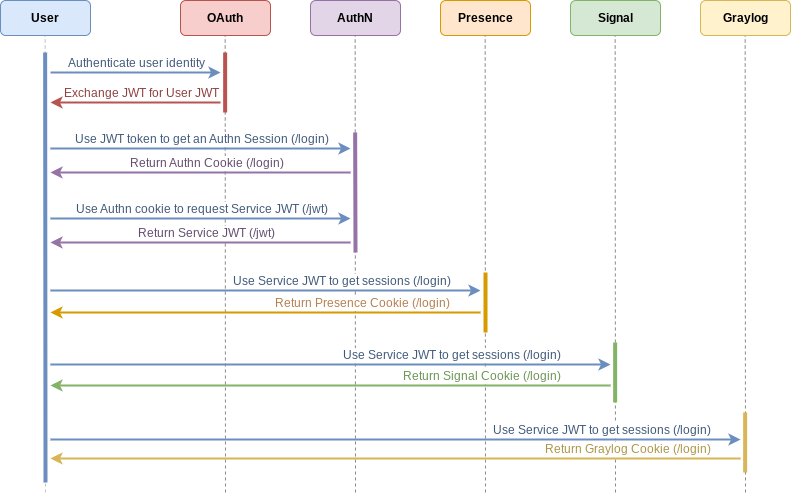
A user may have four different types of login methods such as CAC, Google, Apple or Email. These login types may provide the user with varied permissions when creating rooms.
Some users may log into presence using just an email. This creates a more complex process that involves the user receiving an OTP in their email address. This OTP is then used to log the user into SME Connect.
The overall process involves 2 different OTP-related endpoints to send and validate the OTP.
Approving a User to a Room | Link
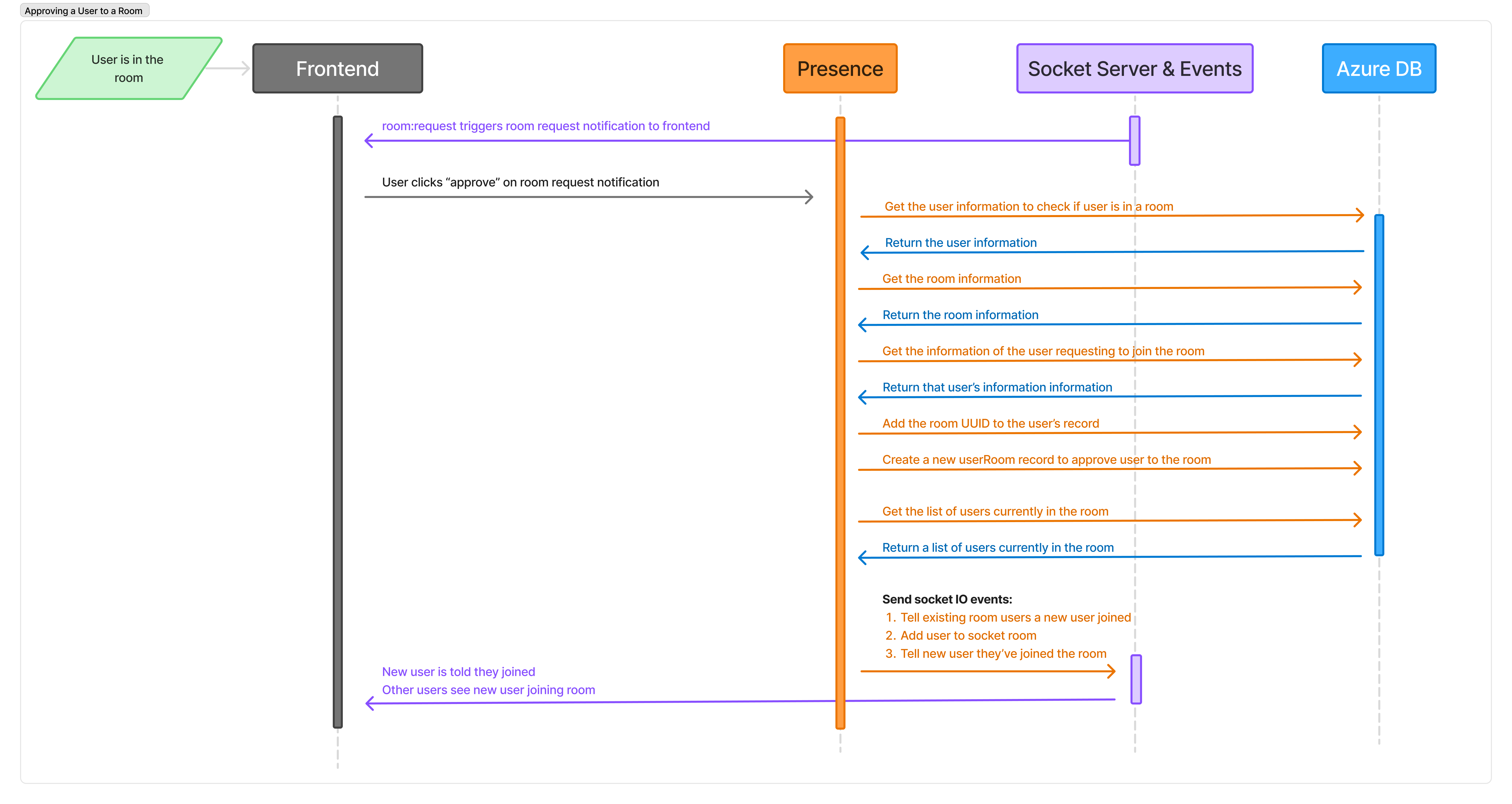
A user is notified that someone is joining the room through the room:request socket event. If a user clicks on the "Approve" button, then the approval process will begin.
Models & Socket Events | Link to Docs
This section contains detailed information about the main classes, events, and properties or variables used in adapt-media-presence. These components make up a large portion of the API or events that help run SME Connect.
Here is a list of some of the important data models and classes in this section:
- Model (base class)
- User
- Room
- UserRoom (a record of a room a user is approved to join)
- Invites
- OTP
- SocketIO
Model & Extended Classes
The main model class contains numerous shared methods and properties that are shared between varied classes. The class diagram below highlights the shared and individual properties and methods for these classes.
Socket IO Shared Models
A SocketEventHandler class provides shared methods for different socket events.
Non-shared classes
The SocketRoomHandler and Email classes are two remaining major classes in presence that do not have shared properties/methods with other classes.
WebSockets
Websockets provide a persistent connection between a client and server. This allows for real-time, bidirectional communication where either side can send data at any time. Unlike the traditional HTTP protocol, Websockets allow the server to push data to the client without the client explicitly requesting that data. This enables more dynamic updates and interactive experiences with users. For SME Connect, this allows for faster communication without the overhead needed for requesting new connections or constant polling of information.
In the previous iteration of Presence, a user would have to poll the rooms_get endpoint to receive updates regarding the status of other members in the room. For instance, a user would not know if another has joined or left a room until receiving the members list from rooms_get. By using websockets this polling is no longer needed. The user does not need to constantly ask the server for information. Instead, websocket events will trigger when a user leaves/joins a room, which will then notify the other users of the change. This creates more real-time updates and communication between the users.
General Concept
Web PubSub & Hubs
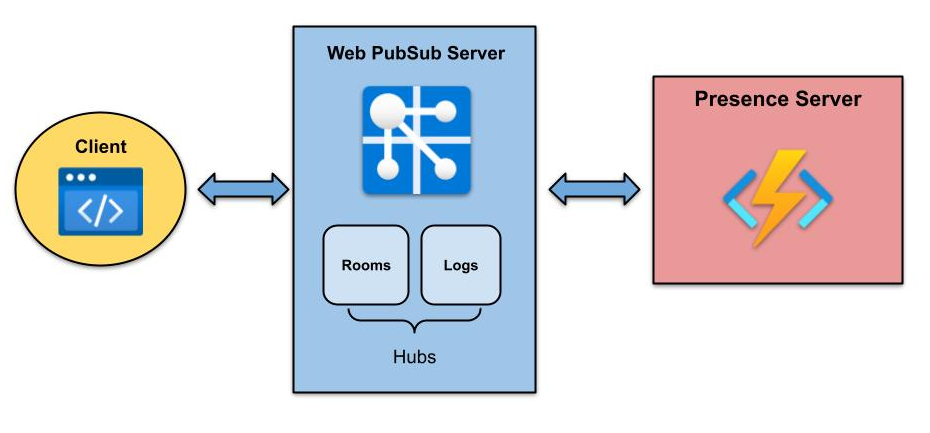
This application uses the Azure Web PubSub service for its websockets. It follows the "Publish-Subscribe (PubSub) model that works like this:
- Publishers send messages
- Subscribers receive messages
- Those interested in certain messages will subscribe to a "channel" or "topic" to receive those messages.
In Web PubSub, hubs are used to organize the message traffic and connections. These hubs contain connected clients that may be grouped together and will receive broadcasts or messages sent to all individuals within a specific group. In SME Connect, a "rooms" hub organizes users into specific room groups based on what room a user joins. This allows users to receive tailored status updates and notifications based on their own room.
Socket Events & Triggers
Azure Functions use trigger binding to trigger a function to process events from the Web PubSub for Socket.IO. These bindings are often Azure Function triggers that are responding to a Socket.IO event sent by a client. The function then processes the triggering logic and sends messages back to the Socket.IO clients. These messages may just be data updates, such as room data, or might be new events emitted to the user/members of the rooms hub.
Essentially, these triggers are events that the backend client listens for and will process the event.
Websockets in SME Connect
In SME Connect, there are several socket events that are triggered by user actions.
Some example triggers include:
- broadcast | Link - Sends data from a connected client to all connected clients
- data | Link - Sends room data to a user
- roomRequest | Link - Processes a user requesting to join a room. Will trigger other events, such as sending user to room or notifying other users of a room request.
- roomLeave | Link - Clears a user's room data. Will trigger an event to notify other users that someone has left the room.
- kickUser | Link - Clears a user's room data. Will trigger other events such as removing the user socket from the room and telling the user they've been kicked.
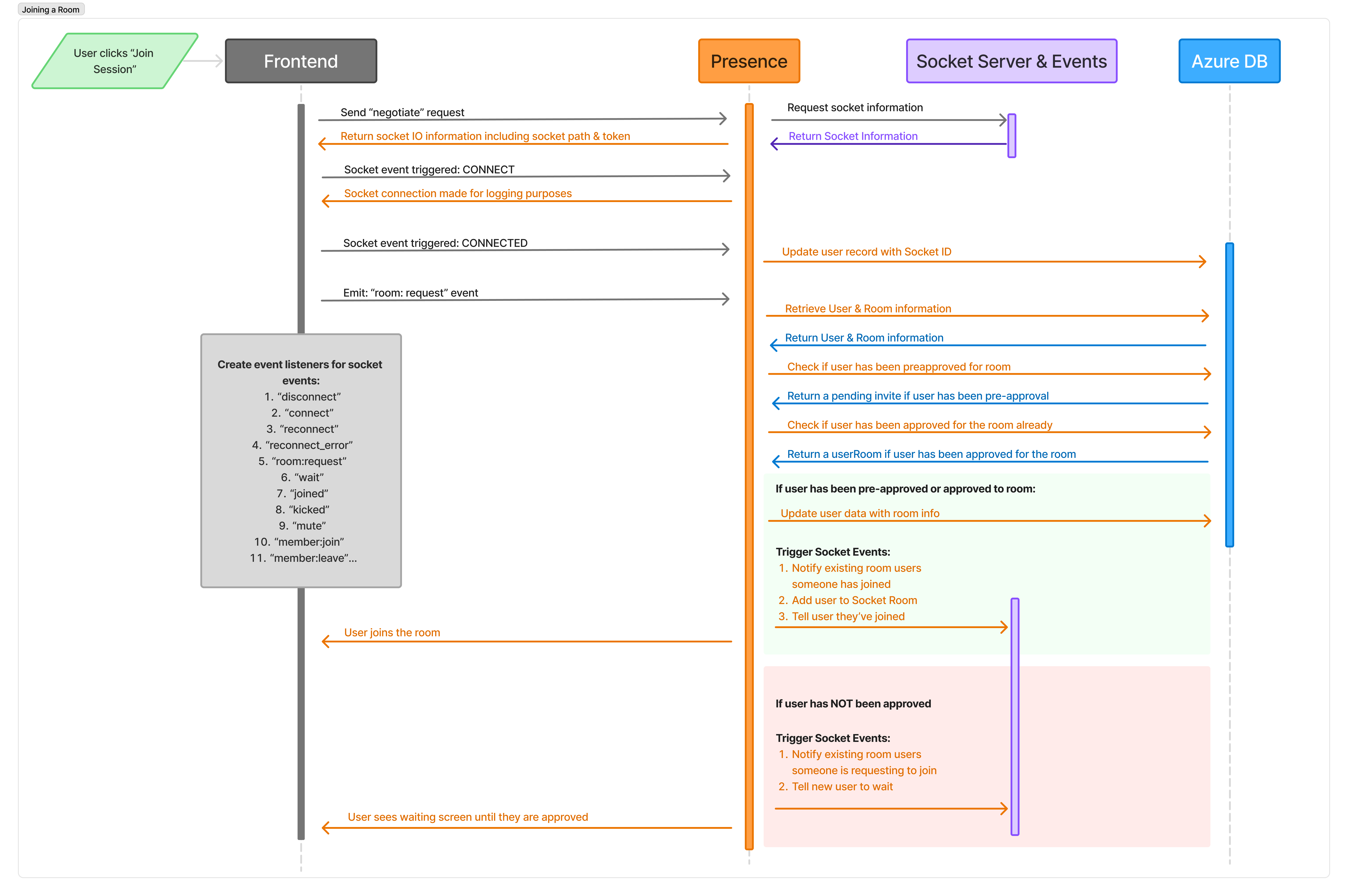
Joining a Room | Link
User actions also will trigger a succession of backend events. For example, when a user requests to join a room, presence will handle the request through a Socket IO event.
Joining a room will create new socket events for the user that will notify others of either a pending request to join a room, or if a user has successfully joined the room.
Member/User Permissions & Licensing
SME Connect limits some of a user's actions based on the user's email address and login method. For example, a user who logs into SME Connect using their CAC will and has an email domain of @mil will be able to create a room and kick a user. However, if this user logged into SME Connect using google login, they will not have access.
This information is based on the repo's ADMIN_LIST environment variable. Any changes to what groups have permissions will need to be made to this variable.
In the return values for many of the user API endpoints, there will be the addition of a permissions property provides to the front-end. This property will be an array highlighting a user's permissions and authorization for performing specific actions.
These are the possible values and meaning:
room_create: Allows a user to create a roomrooms_content: Allows an admin user to view all information about a room (currently deprecated)admin_logs: Allows user to view administration logsroom_kick: Allows user to kick someone from a room
Note: There are certain situations where a user will never have permission to perform certain actions. If a user logs into SME Connect using an OTP, they will have the email method attached to their account. This method is not secure enough to grant users permission to create rooms.
Current Permissions (as of August 4, 2025):
develop, qa, production
room_create- TAF users, logging in via google, apple, or CAC
- @mil users, logging in via CAC
- Test users (for JS Common & Browserstack testing)
room_kick- TAF users, logging in via google, apple, or CAC
- @mil users, logging in via CAC
- Test users (for JS Common & Browserstack testing)
admin_logs&rooms_content- TAF users, logging in via google & CAC
- Test users (for JS Common & Browserstack testing)
How to change permissions
To change permissions, edit the ADMIN_LIST variable found in the TAF-IAC repository. In the repository, the variable is using a JSON object of the ADMIN_LIST. This variable selects the correct permissions based on the environment (dev, qa, production).
Important Terminology
- CAC - Common Access Card. This is a “smart” ID card for military personnel, contractors, or DoD employees. In the backend, there is a special method and process for CAC logins.
- Cookies - 🍪 SME Connect uses HTTP cookies, or small pieces of data, to store user credentials, such as session IDs for a backend service like Presence or Signal.
- Embedded Node (EmNode) - User classification of someone using the Tools Gateway. This was the previous name used for the Tools Gateway. In Presence, the
EmbeddedNodeis a type/device. - JWT - JSON Web Token. These tokens are created/signed during the user authentication. In
Presence, aJWTendpoint is used to authenticate a user for theassetsservice. - Onsite Expert - User type of someone using an iPad
- Remote Expert - User type of someone using the Web UI
- SME - subject matter expert
- Tools Gateway - A device that connects any USB or serial-enabled tool to the iPad and the remote expert. Previously, this device was known as the “Embedded Node”, which you may still hear used. The Tools Gateway supports tools such as digital cameras, digital micrometers, digital multimeters, and optical borescope. For backend APIs, the Tools Gateway and its connected tools are each considered individual users, with the tools having a direct connection with a Tools Gateway (known as “EmNode” or “Embedded Node”).
- Websocket - A websocket enables real-time, two-way communication between a client and server. For SME Connect, socket events help communicate to users when others have joined the room, are requesting to join a room, and when users have adjusted their video/audio settings. Websockets prevent the need for having to poll the presence server for specific data (such as changes in the room's members list)
Editing the Documentation
This documentation is created using docusaurus. This website builder has been setup to combine files containing OpenAPI configurations and TypeDoc.
The documentation files can be found in the docs directory in this repository's source files. When editing these files, do not change the file names as docusaurus has been set up to find and use these file names. The following list highlights what is contained in each file and what contents should be updated/edited when updating the documentation.
- docusaurus.config.ts
- This configuration file contains the metadata and configuration settings for creating the docusaurus website. It also includes the navigation settings. If copying this repository, update only the title property with the name of the service.
- index.md
- This file is the homepage information for the documentation. If copying this repository, edit the entire contents of this file.
- indext.ts
- This file contains the entry points for
TypeDocto compile the documentation for the exported functions/classes. If editing or adding additionalTypeDoccomments to functions and classes, check that the files are included inindex.ts. If copying this repository, edit the entire contents of this file.
- This file contains the entry points for
- openapi.yaml
- This file is the
OpenAPIstandard for the service's API. It contains information about endpoint's actions, requests, and responses. When editing or adding an endpoint, edit this file to reflect any changes made. If copying this repository, edit the entire contents of this file.
- This file is the
- typedoc.json
- This file contains the
TypeDocconfiguration used to compile and generate the documentation for this repository's functions and classes. When editing this file, edit only thename.
- This file contains the
- typedocIntro.md
- This file contains the introductory information for the
TypeDocsection of the documentation. This section highlights information about the service's functions and classes used. If copying or editing this repository, edit only thenameproperty.
- This file contains the introductory information for the
- assets
- This folder contains images that can be used in the
typedocIntro.mdandindex.mdfiles. Reference a relative URL path of:img/[FILE PATH]for Docusaurus to adequately find the image.
- This folder contains images that can be used in the
Documentation Resources
To understand more about this documentation and the resources used to compile it, consult the following resources:
- Docusaurus.io - The main website compiler.
- OpenAPI - The OpenAPI standard used to create the API documentation
- TypeDoc - The TypeScript documentation generator. It uses comments in files to create documentation